Google Business Profile Verification Guide: Why Listings Get Re-Verified and How to Submit Your Business Video
If your Google Business Profile has suddenly been marked “Needs verification”, suspended, or prompted for video evidence, you’re not alone.
Google continues to tighten quality controls to reduce spam listings, fake addresses, and misleading business information. For legitimate businesses, that means one thing: you must be able to prove you are real, operational, and trading exactly as your profile states. This is due to so many “bad actors”: individuals, groups, or organisations who intentionally exploit Google’s platforms, such as Search, Ads, Play Store, and YouTube, to cause harm, defraud users, or distribute malicious content. These entities frequently manipulate, deceive, or disregard policies to gain unauthorised access to data or financial profit.
While it can be hugely frustrating and infuriating, Google is doing its best to provide a trustworthy platform to help people.
This goes some way to describe why verification is no longer a simple formality. It is a compliance process.
This guide explains:
- Why verification and re-verification happen
- The difference between storefront and service area businesses
- How to prepare properly for video verification
- How to access and submit your business video
- Common pitfalls and troubleshooting tips
- What to do when you’re at the end of your tether (practical help if verification feels confusing or overwhelming – scroll to the bottom for expert guidance)
Why Google Business Profiles Need Verifying or Re-Verifying
Verification confirms that:
- Your business exists
- You operate at the address listed (if public)
- You are authorised to manage the profile
- Customers can genuinely access or contact you
Re-verification is commonly triggered by:
- Editing your business name, address, or category
- Changing business type (storefront ↔ service area)
- Moving premises
- Ownership or manager changes
- Industry categories prone to spam
- Algorithmic quality checks
- Inconsistent or incomplete information
In the UK, video verification is now one of the most common methods used.
Understanding Your Business Type Before You Record
Before preparing your verification video, you must confirm how your business is categorised on your Google Business Profile:
- Storefront (location-based business)
- Service Area Business (SAB)
Many failed verifications occur because the business is set up with the wrong business type or because evidence is prepared for the wrong model.
Storefront (Location-Based Business)
You are a storefront if:
- Customers can visit your premises during stated opening hours
- Your address is publicly visible on Google
- The premises are staffed
- You display permanent signage
Examples include retail shops, salons, cafés, galleries, and hotels.
What Google Needs to See in Your Video
Google is verifying physical presence and public accessibility.
Your video should show:
Exterior evidence
- Permanent, fixed signage displaying your business name
- Clear street context (street sign, neighbouring properties, building number)
- Public entrance
Interior evidence
- Active trading setup
- Equipment relevant to your services
- Work areas
Proof of authority
- Unlocking the door
- Access to staff-only areas
- Alarm system or restricted access
Temporary banners, shared office corridors, or unbranded co-working spaces commonly lead to rejection.
Service Area Business (SAB)
You are a service area business if:
- Customers do not visit your address
- You travel to clients
- Your address is hidden from public view
Examples include photographers working on location, tradespeople, mobile services such as therapists, locksmiths and pest controllers, event suppliers, and consultants.
Important: Service Area Businesses Do NOT Need Public Signage
Google is not expecting a shopfront. Instead, it is verifying that you actively trade and legitimately provide the services listed.
Your video should show:
Operational evidence
- Tools, equipment, or stock
- Branded materials (if applicable)
- Work in progress
- Business admin setup (home office, booking system, editing desk, etc.)
Proof of authority
- Access to business systems
- Branded vehicle (if relevant)
- Equipment storage
- Active job management
If you operate from home, you do not need to show your full property – just enough to demonstrate genuine trading activity.
How to Prepare Your Phone for Video Verification
Before recording, take a few practical steps to reduce the chance of technical issues:
- Make sure your phone is fully charged
- Turn off notifications so calls, texts, or app alerts don’t interrupt recording
- Enable camera and microphone permissions for the Google Maps app
- Try to be in a spot at the business location with the best available mobile or Wi-Fi signal
- Make sure your Google Maps app is the most up-to-date version
⚠️ You must be physically at the business location for verification, so the signal may vary. Being prepared helps avoid interruptions during recording.
How to Access and Start Video Verification (Google Maps App)
For most business owners, the simplest method is via the Google Maps app. Desktop or web browsers do not provide the verification button.
Step 1: Open Google Maps and Log In
- Open the Google Maps app (iOS or Android)
- Sign in using the Google account associated with your Business Profile
- Both owners and managers with sufficient permissions can see the verification option
⚠️ If you have multiple accounts, double-check you are using the correct one.
Step 2: Access Your Business Profile
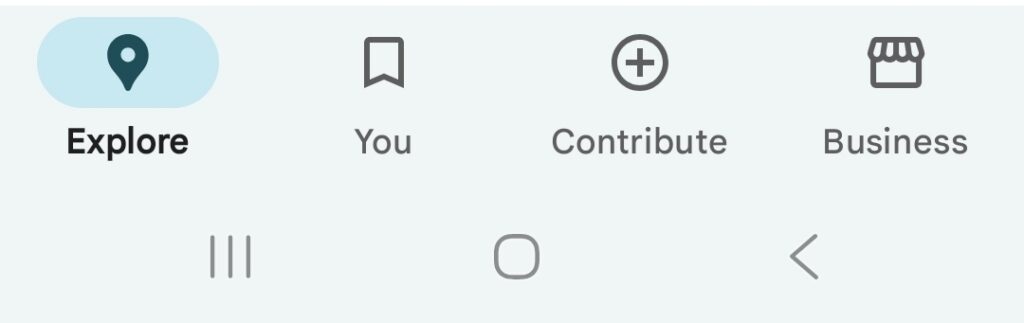
- Tap the “Business” tab at the bottom right of the app
- All business profiles you can manage will appear
- Select the profile requiring verification
✅ This is simpler than searching for your business by name, especially for common names.
Step 3: Start the Video Verification
- Tap the verification prompt (may say “Verify now” or “Record business video”)
- Choose Video verification if multiple options appear
- The app will open a built-in recording interface
Step 4: Record Your Video
- Tap “Start recording”
- Record a continuous, unedited video demonstrating:
- Storefront businesses: exterior signage, entrance, operational activity, proof of authority
- Service area businesses: workspace, equipment, active service setup, proof of authority
- Do not edit, add music, or cut the footage
Step 5: Submit the Video
- Tap “Send” or “Submit” inside the app
- Stay on the uploading screen until the video is fully delivered – leaving the screen or switching apps can interrupt the upload and delay verification
- Google will review the video and update your profile status
- You will receive a notification once approved or if additional evidence is required
Troubleshooting Tips
If the “Business” tab or verification prompt does not appear:
- Confirm you are logged into the correct account
- Ensure camera and microphone permissions are enabled
- Check your internet connection and battery
- Restart the app if necessary
⚠️ Most issues arise from being logged into the wrong account, poor signal, or trying to access verification from desktop.
Common Reasons Verification Videos Fail
- Listing a residential address as a storefront
- Using a virtual office as a public location
- No permanent signage for a storefront
- Displaying an address publicly when customers cannot visit
- Empty or inactive workspace
- Inconsistent business name
- Shared premises without clear differentiation
Google’s systems are designed to flag misrepresentation. Even unintentional misalignment between your listing and your real-world setup can trigger repeated verification requests.
How to Reduce the Risk of Re-Verification
- Keep your business name compliant (avoid keyword stuffing)
- Ensure NAP consistency (Name, Address, Phone)
- Avoid unnecessary edits
- Choose the correct business model (storefront vs service area)
- Maintain clear operational evidence
- Monitor your listing regularly
The key principle is alignment: your listing must match reality.
Need Help With Google Business Profile Verification?
If you’re feeling stuck or overwhelmed, my Google Business Profile Support Subscription is designed to take the stress off your shoulders. I’ll guide you step by step, including verification, optimisation, and ongoing profile management.
With the subscription, you get:
- Personal guidance through video verification
- Advice on storefront vs service area setup
- Troubleshooting and submission support
- Ongoing profile monitoring and optimisation
⚠️ Even if you’ve tried multiple times, having expert guidance ensures your profile stays compliant, visible, and fully optimised for local search.
Final Thoughts
Verification is about trust and accuracy.
Google prioritises genuine businesses and filters out ambiguity. Preparing properly for video verification – including correct business type, video content, phone readiness, and staying on the upload screen – dramatically increases approval speed and reduces risk of suspension or lost visibility.